Schema-aware XML editor for Mac · New in XML Lens 1.9.13
Write valid XML as you type with an XSD on Mac
XML Lens is a native Mac XML editor that uses your XSD while you type. Attach a schema and it suggests the elements, attributes, and values allowed at the caret, checks the document against the schema each time you pause, explains every problem in plain English, and offers one-click fixes. Everything runs locally; nothing is uploaded.
Listed as XML Editor Lens: XPath on the Mac App Store.
Attach a schema once
When a document names its schema with xsi:schemaLocation or xsi:noNamespaceSchemaLocation, XML Lens finds it and attaches it. Otherwise choose Attach Schema from the Schema menu in the editor. XML Lens follows xs:include and xs:import to local schema files and remembers the schema you chose for each document.
XML Lens is a sandboxed Mac App Store app, so it reads a schema in another folder only after you pick that file or folder in the standard macOS open panel. The bar above the editor tells you when access is needed.
New to schemaLocation? How to link an XML file to its XSD explains the attributes and the common mistakes.
- Found automatically from xsi:schemaLocation and xsi:noNamespaceSchemaLocation
- Local xs:include and xs:import are followed
- The schema you choose is remembered for that document
- Schemas are never fetched from the network
Autocomplete from your XSD
Suggestions come from the schema, at the exact position of the caret. Type < and the list shows only the elements allowed next, with required ones marked. Inside a tag, a space lists the attributes the element accepts; inside an attribute or text value, the list shows enumerated values. Choose an item and XML Lens inserts the tag with its required attributes, then Tab moves to the next empty field.
Without a schema, XML Lens still suggests element and attribute names already used in the document.
<items>
  <item sku="LENS-02">
    <|        ← type <: productName (Required)
  </item>
</items>- < suggests elements allowed at the caret
- Space inside a tag suggests attributes
- Control-Space shows suggestions anywhere, including values
- Return inserts, Tab moves to the next empty field, Esc closes
Validation as you type
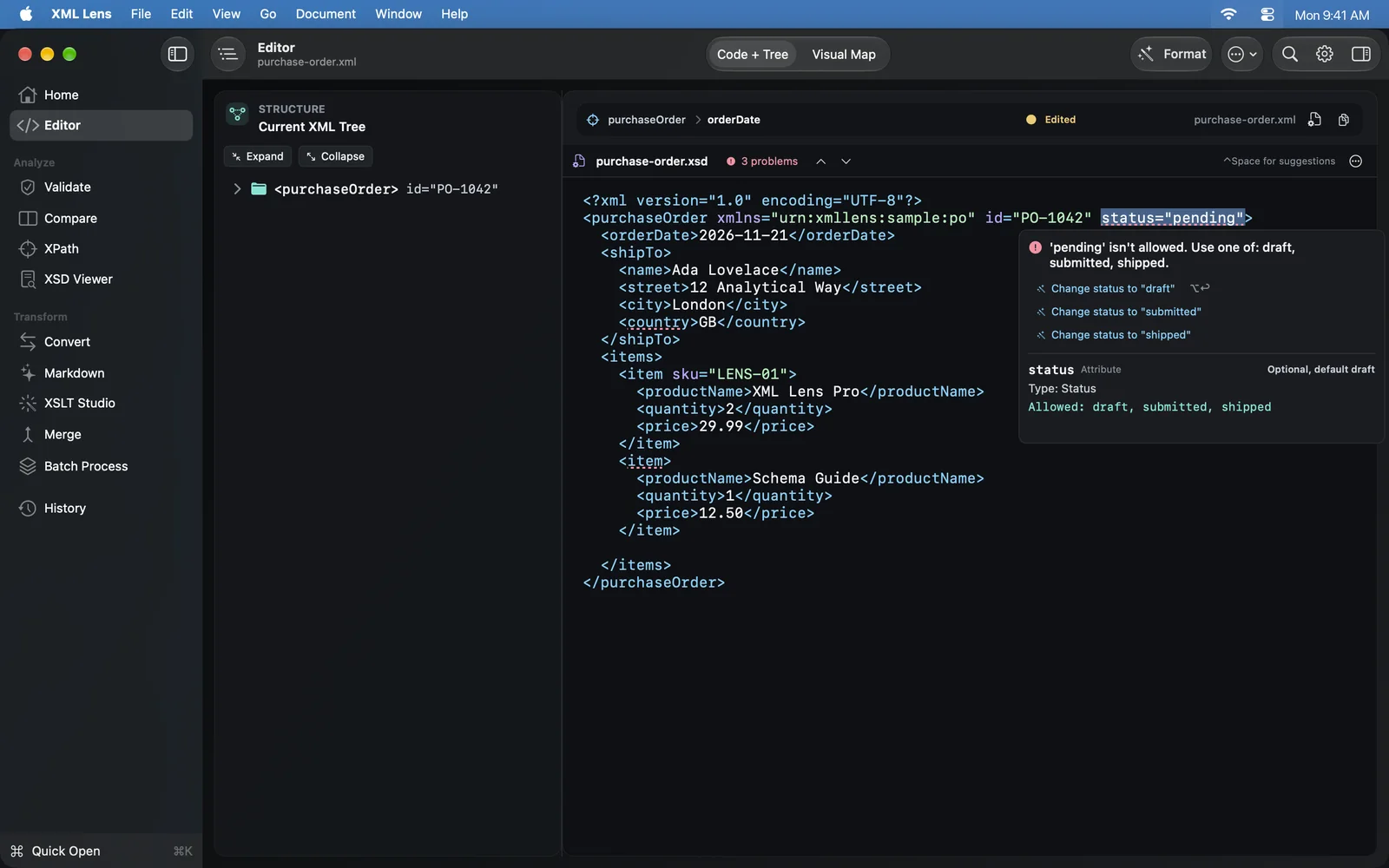
Each time you pause, XML Lens validates the document against the schema on your Mac and underlines every problem with a red dotted line. The bar above the editor counts them; Command-apostrophe jumps to the next one. Messages are rewritten in plain English, such as "'pending' isn't allowed. Use one of: draft, submitted, shipped." instead of a raw validator code.
While the XML itself has a syntax error, schema checking waits and says so, so you fix the markup first. When the document is valid, the bar folds into a small green Valid badge and comes back the moment a problem appears.
For the messages other validators print, XSD validation errors explained maps each one to its fix.
Fix problems in one click
Hover a marked problem to see what is wrong and how to fix it. The same fixes are in the right-click menu, and Option-Return opens them at the caret. Each fix is a single undo step.
- Add a missing required attribute or element
- Change a value to one the schema allows
- Insert the element the schema expects before a misplaced one
- Remove an element or attribute the schema does not allow
Start from the schema
Choose New Document from Schema, pick a root element, and XML Lens writes a document with every required element and attribute in the right order. It starts out valid, and empty values are ready to fill in with Tab. Choose Everything to include optional parts as well.
Other ways to do this, including from Terminal, are in How to create an XML file from an XSD.
Scope and privacy
Schema editing supports W3C XML Schema (XSD) 1.0 and runs entirely on your Mac in XML Lens 1.9.13 for macOS 15 or later. XML and schemas are not uploaded, and XML Lens does not collect analytics. Live checking pauses for documents over 10 MB; use the Validate workspace to check those in one pass. XSD 1.1 assertions, DTDs, and RELAX NG are not used for suggestions.
Frequently asked questions
Is there a Mac XML editor with XSD autocomplete?
Yes. XML Lens suggests the elements, attributes, and enumerated values your XSD allows at the caret. Type < for elements, a space inside a tag for attributes, or press Control-Space anywhere.
How do I validate XML against an XSD while typing?
Open the XML in XML Lens and attach the schema, or let XML Lens find it through xsi:schemaLocation. The document is checked each time you pause, and every problem is underlined and explained.
What does Option-Return do in XML Lens?
It opens the quick fixes for the problem at the caret, such as adding a required attribute or changing a value to an allowed one. Press Return to apply the selected fix.
Does schema editing work with includes and imports?
Yes. XML Lens follows xs:include and xs:import to local files. If the sandbox has not been given access to the schema folder yet, the bar offers Allow Folder Access so you can choose it once.
Does XML Lens upload my XML or schema?
No. Suggestions and validation run locally on your Mac. Schemas are read only from local files you can access, never from the network.